
Introduction:
Managing VM templates across multiple VMware Cloud Foundation domains can quickly become challenging if every vCenter maintains its own separate copy. A better approach is to use Content Libraries to centrally manage templates in the Management Domain and distribute them to one or more Workload Domains.
In this article, I’ll demonstrate how to configure a published Content Library in the Management Domain and consume it as a subscribed Content Library in a Workload Domain. This approach provides a centralized repository for VM templates, simplifies template lifecycle management, and ensures that all workload domains deploy virtual machines from the same standardized images.
What is a tricky part here? We will use VM Templates objects, not OVA, which requires additional steps compared to OVA.
Prerequisites/Preparation:
Before starting, ensure the following requirements are met:
- Two VMware vCenter Server instances are deployed and operational:
- Management Domain vCenter
- Workload Domain vCenter
- A Content Library is configured in the Management Domain as:
- Local/Published
- The Workload Domain has a Subscribed Content Library configured to synchronize with the published library in the Management Domain.
- One or more VM Templates are available in the published Content Library.
- Network connectivity exists between both vCenter Servers so the subscribed library can synchronize successfully.
Note: This guide assumes that the published and subscribed Content Libraries have already been created. If you have not configured them yet, complete that configuration before proceeding with the template synchronization steps.
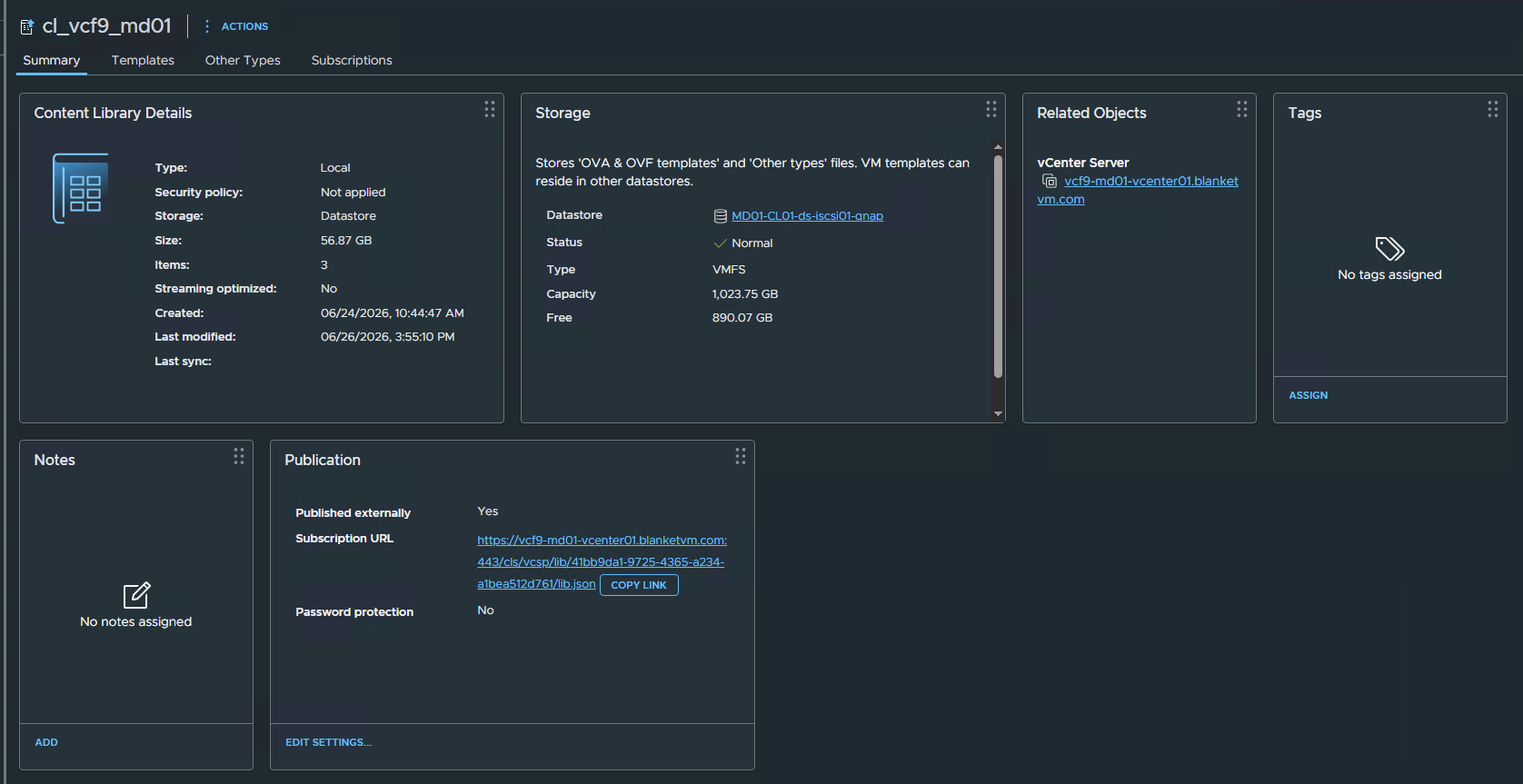
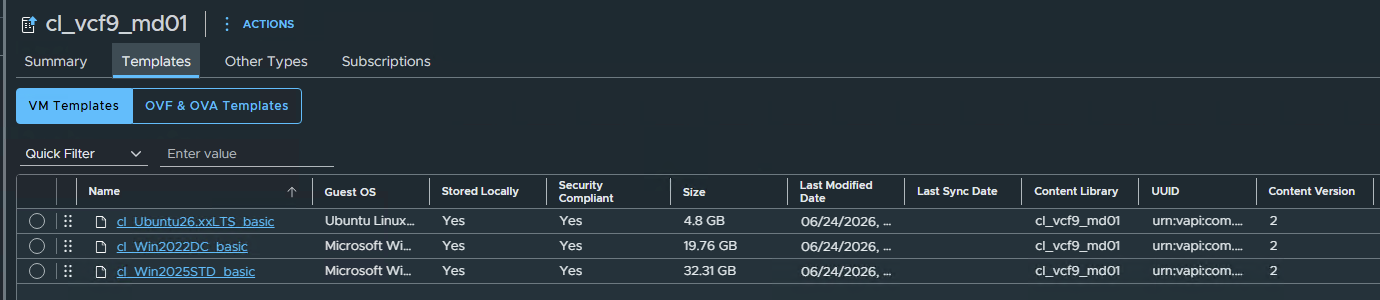
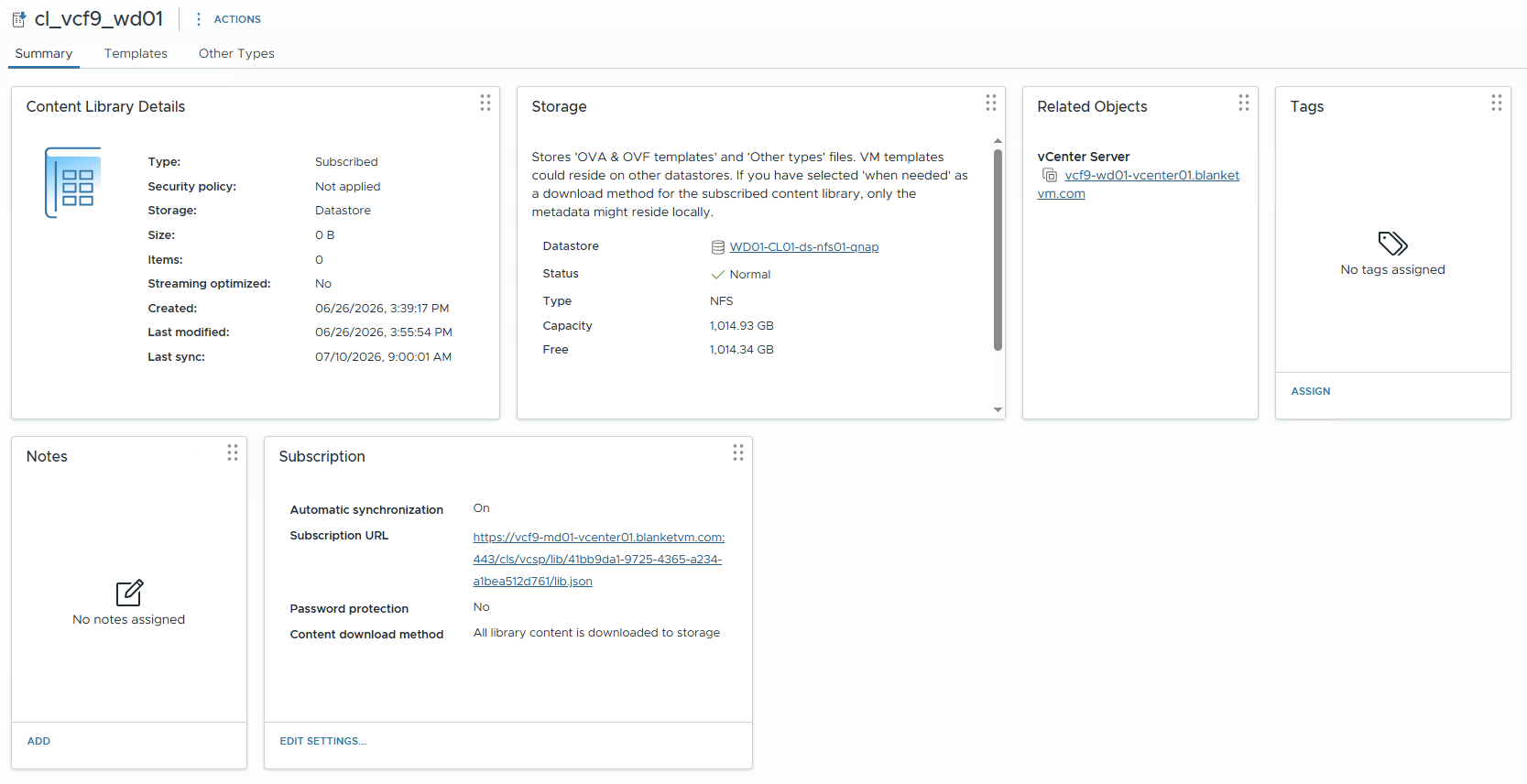
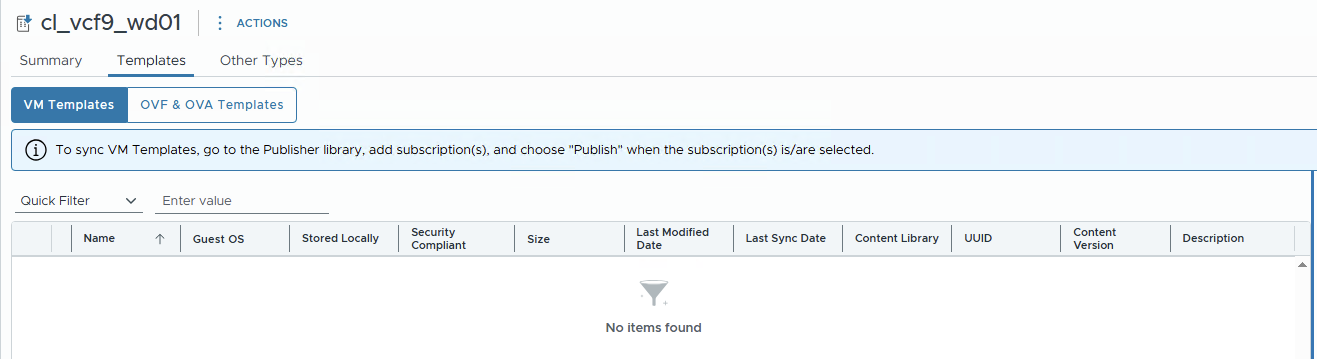
STEP 1: Preparing vCenter Linking
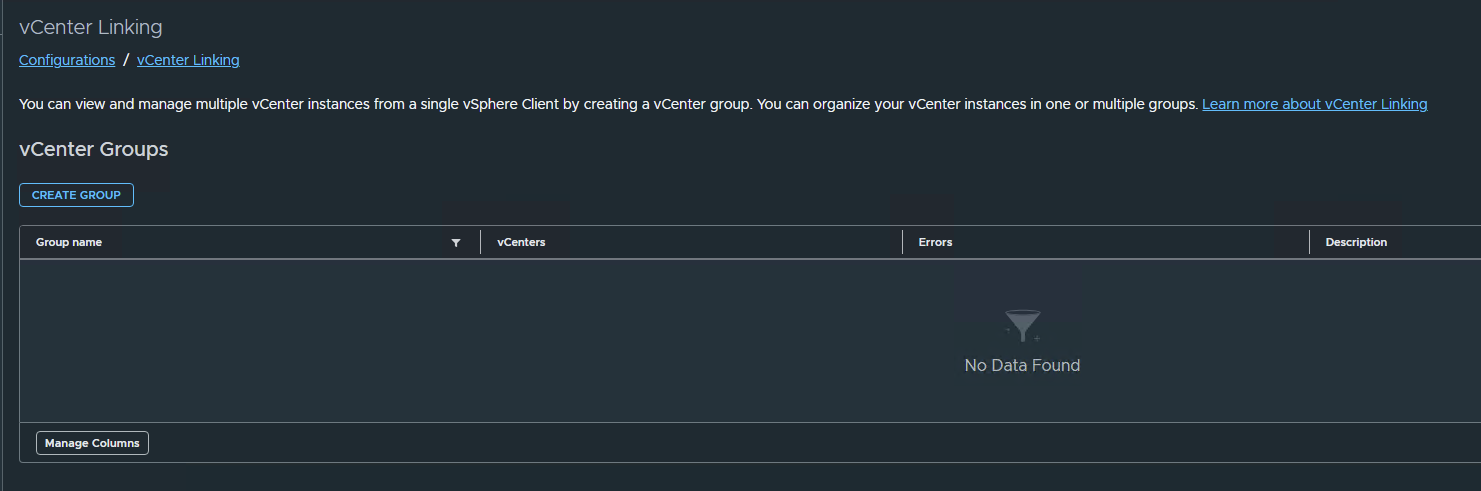
Before sharing VM templates between the Management Domain and the Workload Domain, we must configure vCenter Linking in VCF Operations. Although Content Library replication works independently of this feature, vCenter Linking provides administrators with a unified management experience by allowing multiple vCenter Server instances to be accessed from a single vSphere Client session.
We will need to publish our VM Templates from the Management Content Library, and without vCenter Linking, we will not be able to choose the Workload vCenter from the dropdown list.
Starting with VMware Cloud Foundation 9, vCenter Linking replaces the traditional Enhanced Linked Mode (ELM) architecture for VCF environments. Instead of requiring all vCenter Servers to belong to the same SSO domain and replicate identity data, VCF Operations creates vCenter Groups that logically link multiple vCenter instances together.
NOTE: After making the vCenter Linking configuration, you must log in using VCF SSO to see both vCenters, as with ELM.
- Log into the
VCF Operationsinterface and go toAdministration -> Configuration -> vCenter Linking.

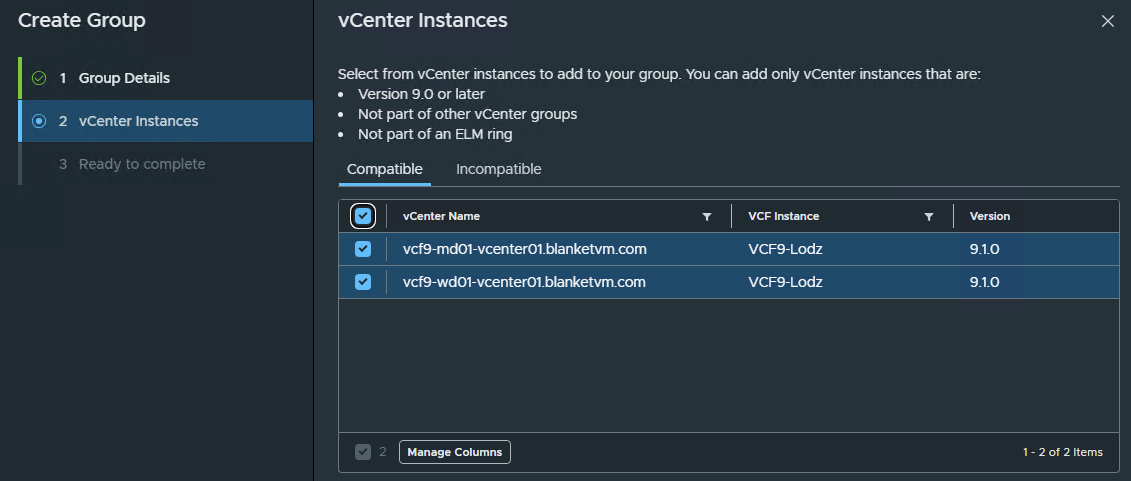
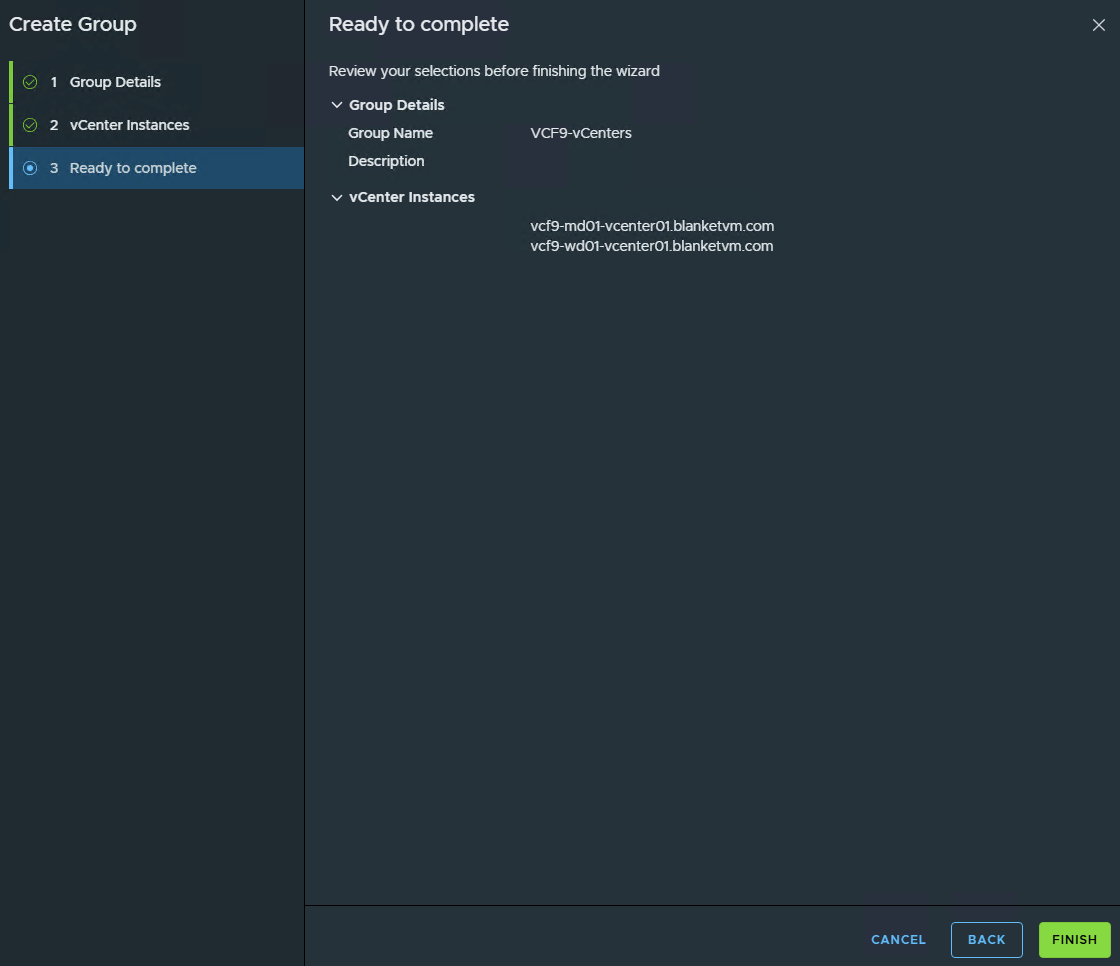
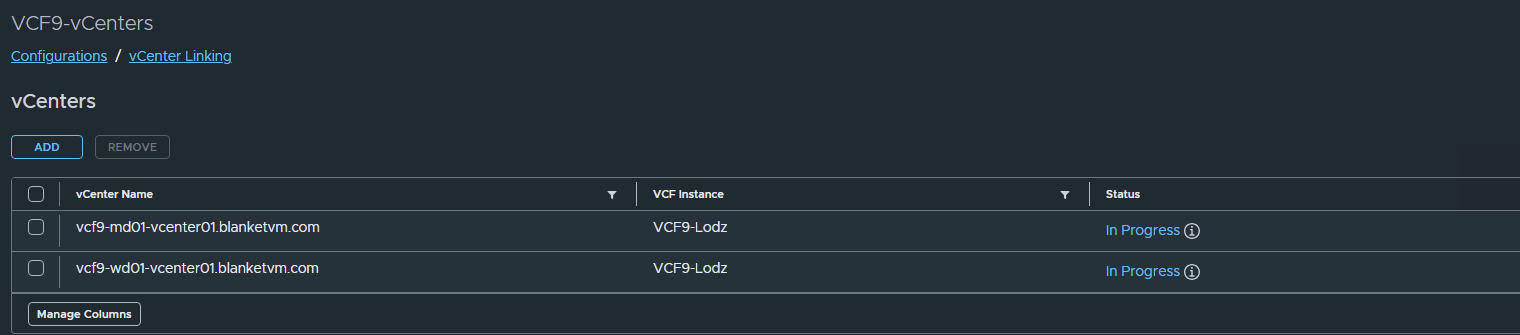
- Create a vCenter Linking Group by clicking on Create Group button and filling all required fields in the wizard:
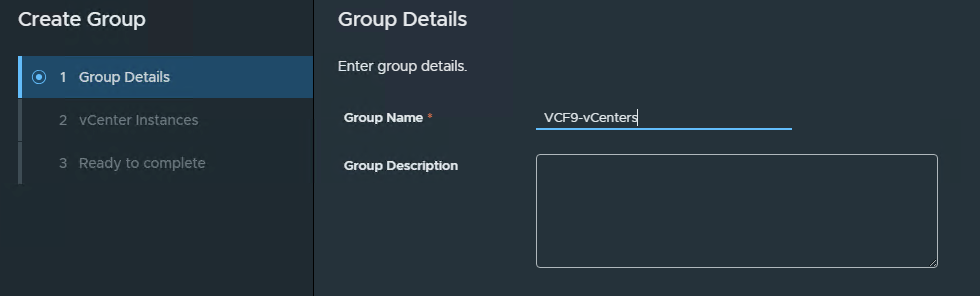
Group Name: <choose your own name for the group>
vCenter Instances: Select compatible vCenter servers. In my case, MGMT + WLD Domain vCenters.
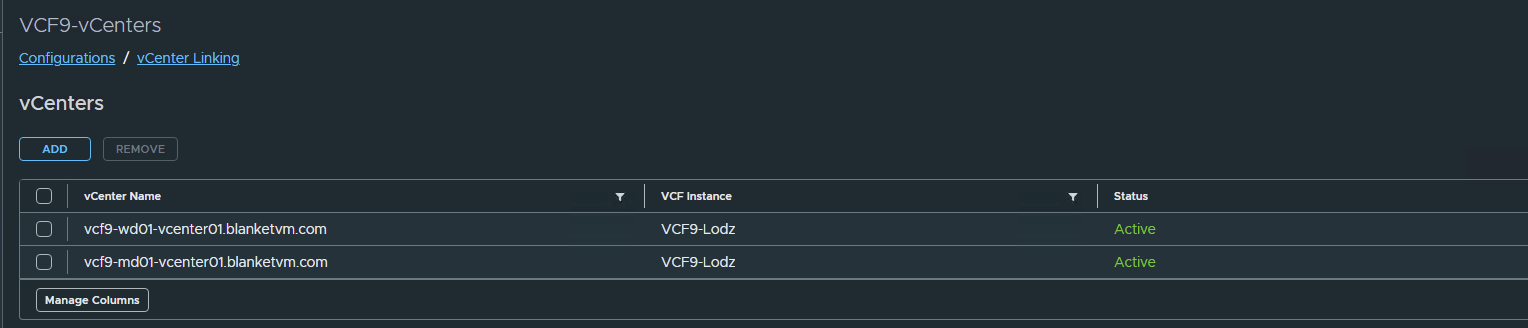
- Wait until both vCenters are
Activein the Group.
STEP 2: Create a new subscription and publish templates.
- Go to
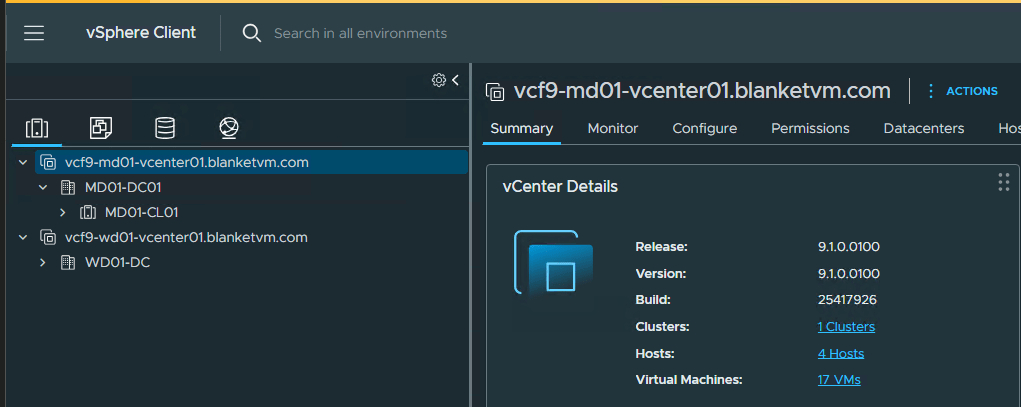
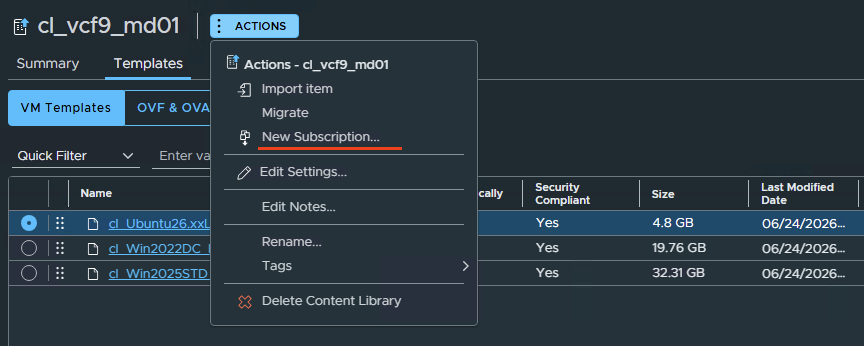
Management vCenter -> Content Libraries(using a VCF SSO user, because only those users can see both vCenters from one pane) and open the main library. Click on theActionsfor that Content Library and selectNew Subscription.

- Select subscription type.
Because we have already prepared the Subscribed Content Library, we use the"Create a new subscription to an existing Subscriber Library"option.
If you do not have such a Content Library yet, you can choose the first option to create a Library in one step.
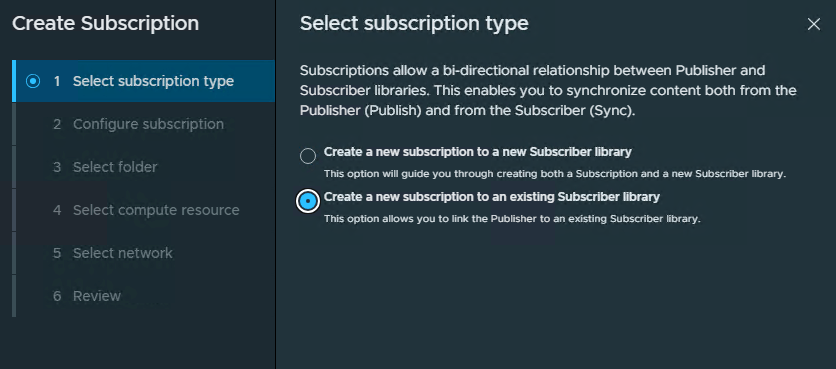
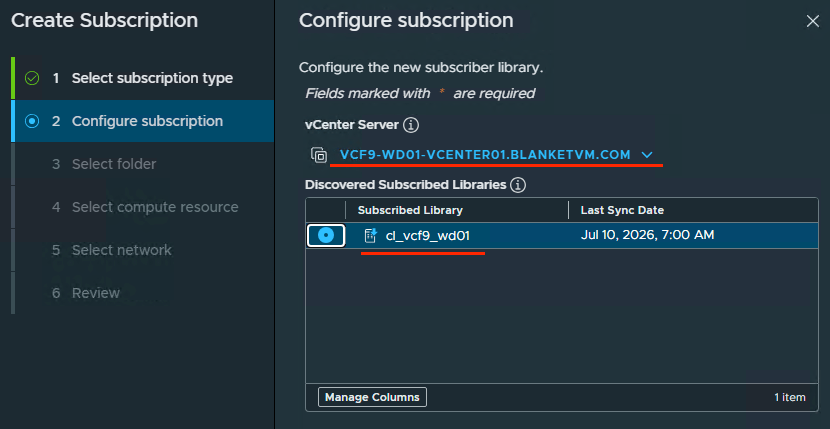
- Then choose Subscribed Library.
NOTE: WithoutvCenter Linking, you cannot choose a different vCenter you are logged into. That was the reason to createvCenter Linkingfirst.
- Choose
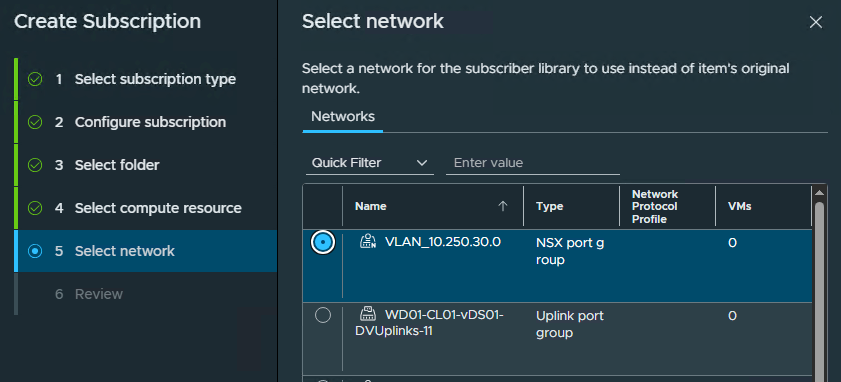
Folder + Compute Resources + Networkfor the subscriber library to use them instead of the item’s original configuration.
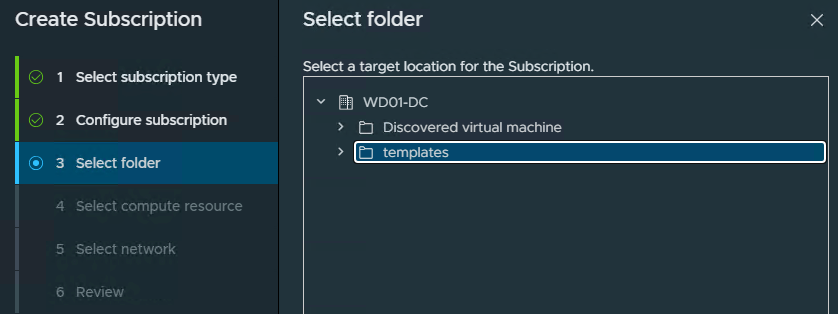
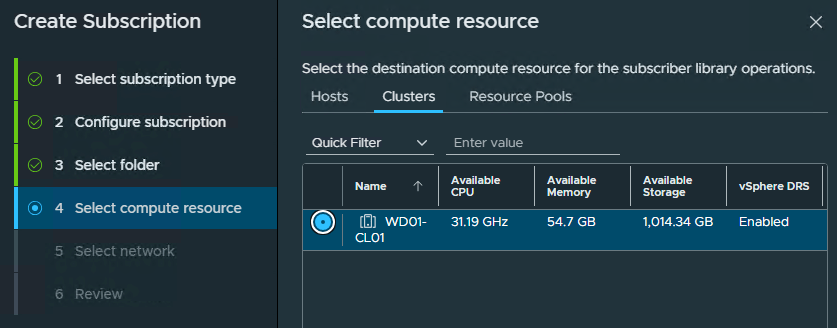
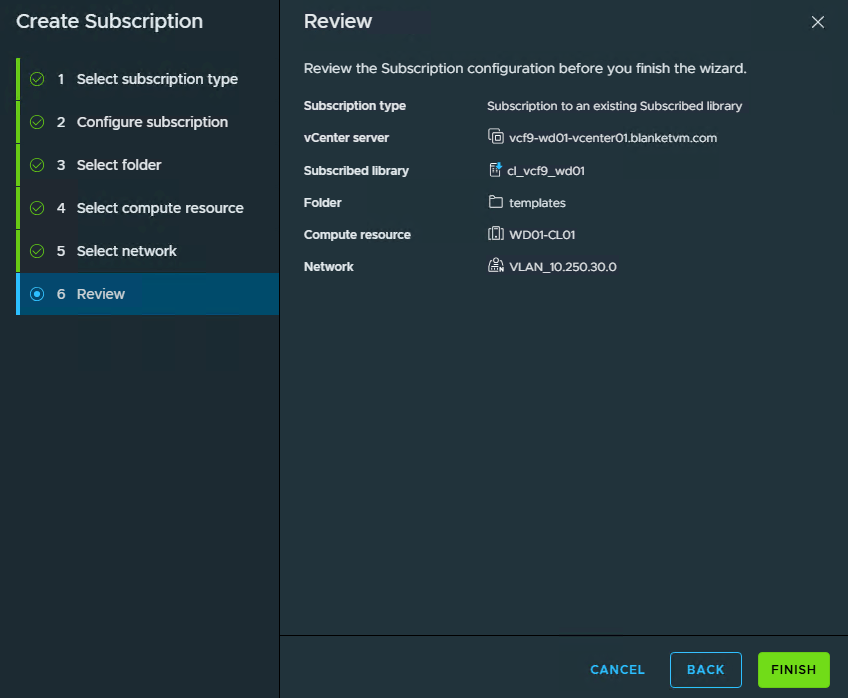
- Review the configuration and click
Finish.
URGENT!: If you encounter an issue with Clone Library as below. Do not worry, it’s a bug, not a feature ;). Go to STEP 3.


STEP 3: Fixing Permissions issue.
This is a known issue for VCF 9.1 described here:
https://techdocs.broadcom.com/us/en/vmware-cis/vcf/vcf-9-0-and-later/9-1/release-notes/vmware-cloud-foundation-9-1-0-0-release-notes/known-issues/vsphere-91-known-issues.html#GUID-7697a0ce-8530-4160-a28a-ec4d3acfacc2-en_id-fb575413-531a-46db-ae24-aa3008dafbd4
Details:
Virtual machine templates might fail to sync when vCenter instances are linked by using vCenter grouping in VCF Operations. With VCF 9.1, you link vCenter instances in vCenter Groups under Operate -> Administration -> Configurations -> vCenter Linking in VCF Operations, instead of using the vCenter Enhanced Linked Mode (ELM), which is deprecated. After you create a vCenter group, if you create a content library on one of the vCenter instances, add a VM template, and try to create a new subscription, the VM template sync might fail. In the vSphere Client, you might see either of the following errors:
A general system error occurred: Failed to publish library to subscribed library on vCenter Server XYZ. Reason: The operation failed due to Permission to perform this operation was denied.Permission to perform this operation was denied: You do not hold privileges... VM template sync works if the vCenter instances are linked in ELM.
Workaround:
For all linked vCenter instances, run the following commands: To retrieve the machine id:
/usr/lib/vmware-vmafd/bin/vmafd-cli get-machine-id --server-name localhostOutput example: eac8395e-f676-4358-a8aa-79e3668ddfa7
To add content library user:
/usr/lib/vmware-vmafd/bin/dir-cli group modify --name vSphereClientSolutionUsers --add content-library-user- --login administrator@vsphere.localFor example: /usr/lib/vmware-vmafd/bin/dir-cli group modify --name vSphereClientSolutionUsers --add content-library-user-eac8395e-f676-4358-a8aa-79e3668ddfa7 --login administrator@vsphere.localEnter password for administrator@vsphere.localOutput example: Account [content-library-user-eac8395e-f676-4358-a8aa-79e3668ddfa7] added to group [vSphereClientSolutionUsers]Group member [content-library-user-eac8395e-f676-4358-a8aa-79e3668ddfa7] added successfully
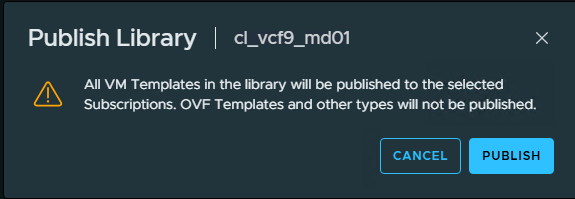
Go to the main Content Library, switch to Subscriptions, select our Subscription, and click Publish to start the Clone Item job again.

That’s it. All done.
Conclusion:
Using a published Content Library in the Management Domain together with a subscribed Content Library in the Workload Domain provides a simple and efficient way to standardize VM templates across your VMware Cloud Foundation environment. Instead of maintaining separate copies of templates in each vCenter, administrators can manage them centrally and make them available to all subscribed domains.
This approach not only reduces administrative overhead but also ensures consistency, simplifies template lifecycle management, and accelerates virtual machine deployments across multiple workload domains. As your VCF environment grows, Content Libraries become an essential tool for maintaining a scalable and standardized infrastructure.
Stay tuned for the next post.


One thought on “VCF 9.1: Share VM Templates between Content Libraries”