
Introduction
In this seventh part of our VMware Cloud Foundation (VCF) 9 deployment series, we continue extending Single Sign-On (SSO) integration—this time to VCF Operations for Logs (formerly Aria Operations for Logs). Centralizing authentication for log management is a crucial step in ensuring secure, auditable access to one of your most critical operational tools.
VCF Operations for Logs provides deep visibility into system, application, and security logs across your virtual infrastructure. Integrating it with the VMware Identity Broker enables users to authenticate through your corporate identity provider, eliminating the need for local account management while maintaining centralized access policies.
In this post, we’ll walk through:
- Preparing Aria Operations for Logs for Identity Broker integration
- Connecting it to the VMware Identity Broker
- Mapping roles and configuring access control in the SSO environment helps ensure consistent access control across the entire VCF platform.
If you didn’t see previous posts, go to:
VCF 9 Deployment PART1: Topology, ESX Host Preparation and VCF Installer deployment
VCF 9 Deployment PART2: VCF deployment
VCF 9 Deployment PART3: VCF Operation for Logs deployment.
VCF 9 Deployment PART4: VCF Single Sign-On configuration (Identity Broker and vCenter).
VCF 9 Deployment PART5: VCF Single Sign-On configuration (NSX Manager).
VCF 9 Deployment PART6: VCF Single Sign-On configuration (VCF Operations).
VCF SSO – VCF Operations for Logs
- Log in to the VCF Operations that was deployed in the second part using the user:
admin. In my case, it is
https://vcf9-md01-vrops01a.blanketvm.com.

- Go to
Fleet Management -> Identity & Access -> VCF Other Components -> click Continue.
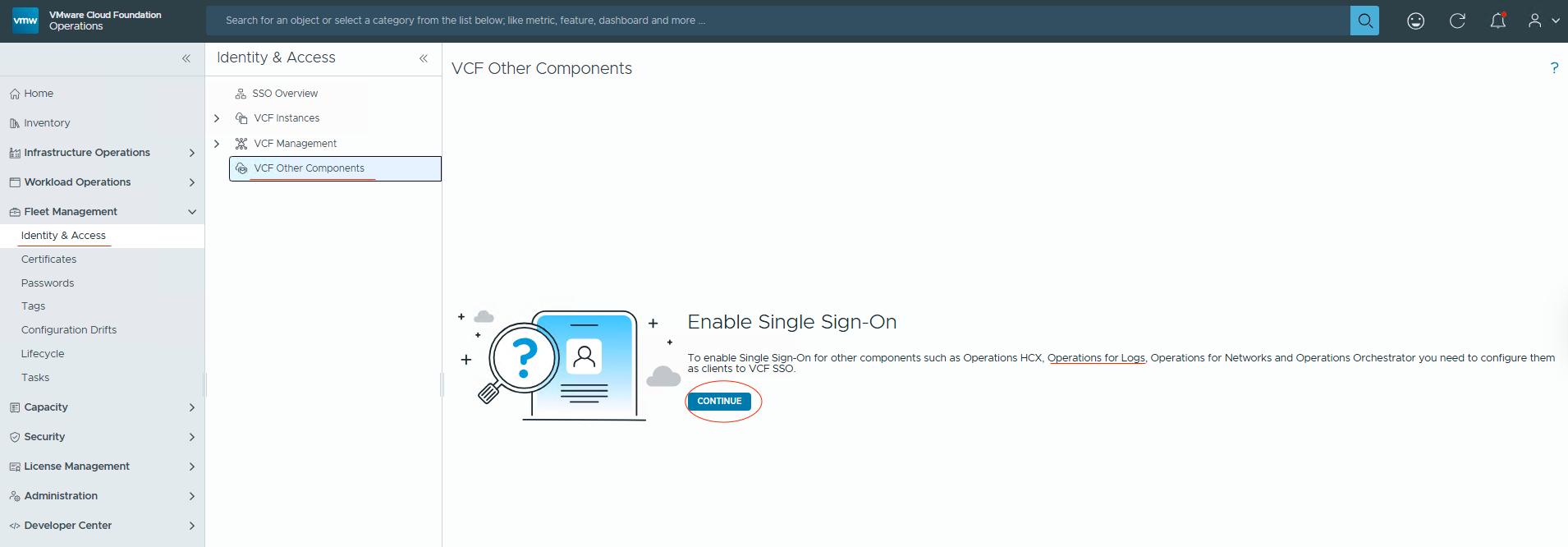
- Fill in the details about a new client.
Name: A VCF SSO client name. Use your own.
Identity Broker: Select our Identity Broker from the dropdown list.
VCF Instance: The name of our VCF.Instance.
Redirect URIs: Paste the URL from below, but replace FQDN with your own.https://vcf9-md01-vrli01.blanketvm.com/login?authMethod=VIDB
Note: My Aria Operations for Logs node has an FQDN: vcf9-md01-vrli01a.blanketvm.com. I use an Integrated Load Balancer FQDN here because that FQDN will be used by users to log into Aria Operations for Logs instance.
Post logout redirect URIs: It is optional. You can redirect the user to any URL if the user logs out of the component.
Then click onGenerate OIDC Client.

- The unique credentials for the client are generated. Copy them:
– Identity Broker Issuer
– Client ID
– Client Secret
We will need them later.
ClickSave.

- We should see a new client on the list.

- Now, we need to visit Aria Operations for the Logs UI and configure the VCF SSO integration.
Open Aria Operations for the Logs UI and log in using theadminaccount.
I used the node FQDN to log in. https://vcf9-md01-vrli01a.blanketvm.com/
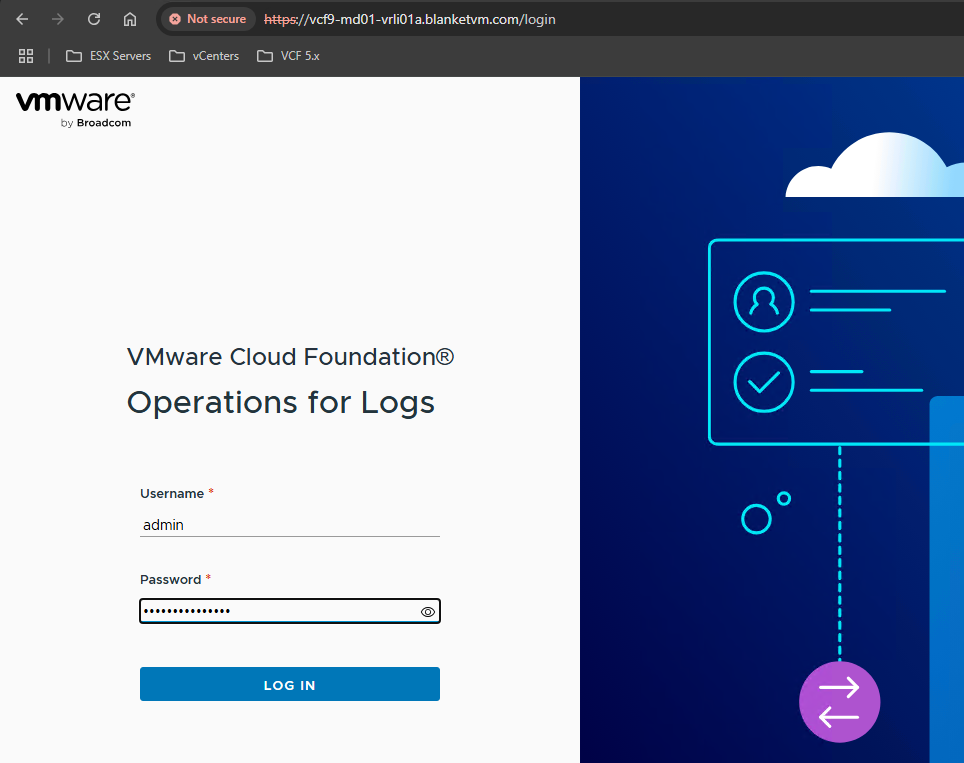
- Go to
Configuration -> Authentication -> select VCF SSO and click on Edit.
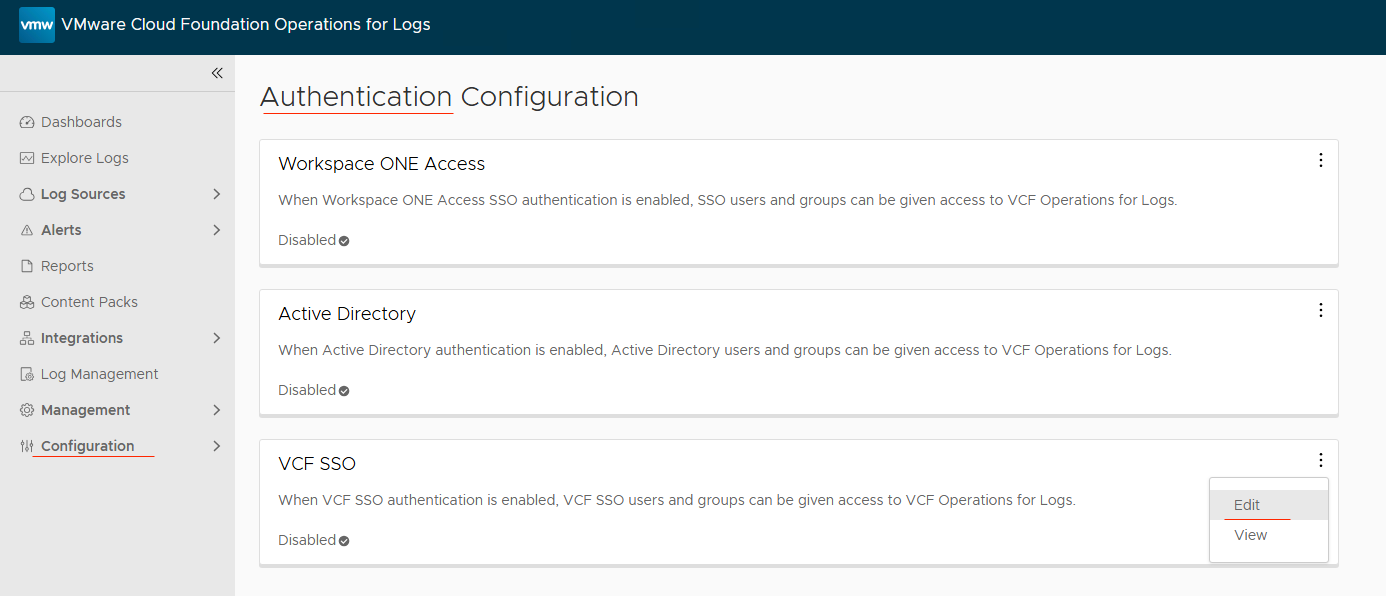
- In the VCF SSO configuration, provide data noted in step 4 (
Identity Broker Issuer, Client ID, Client Secret).
ClickTest Connectionand accept theSSL certificate.


- Click
Save, and you should see that VCF SSO is enabled.

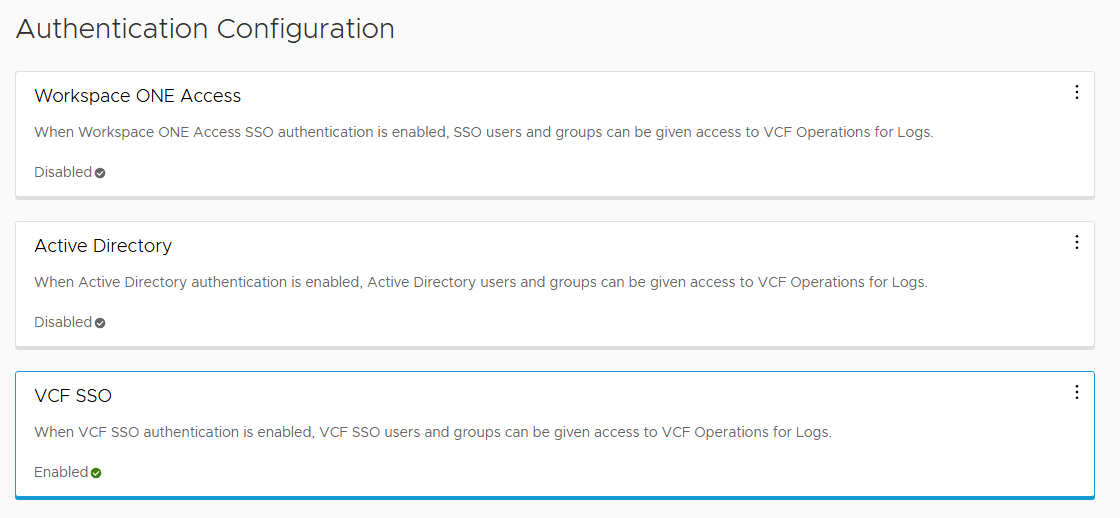
- Now, we must assign permissions to the users/groups.
Go toManagement -> Access Control -> Users and Groupstab and click on the+New Group button.
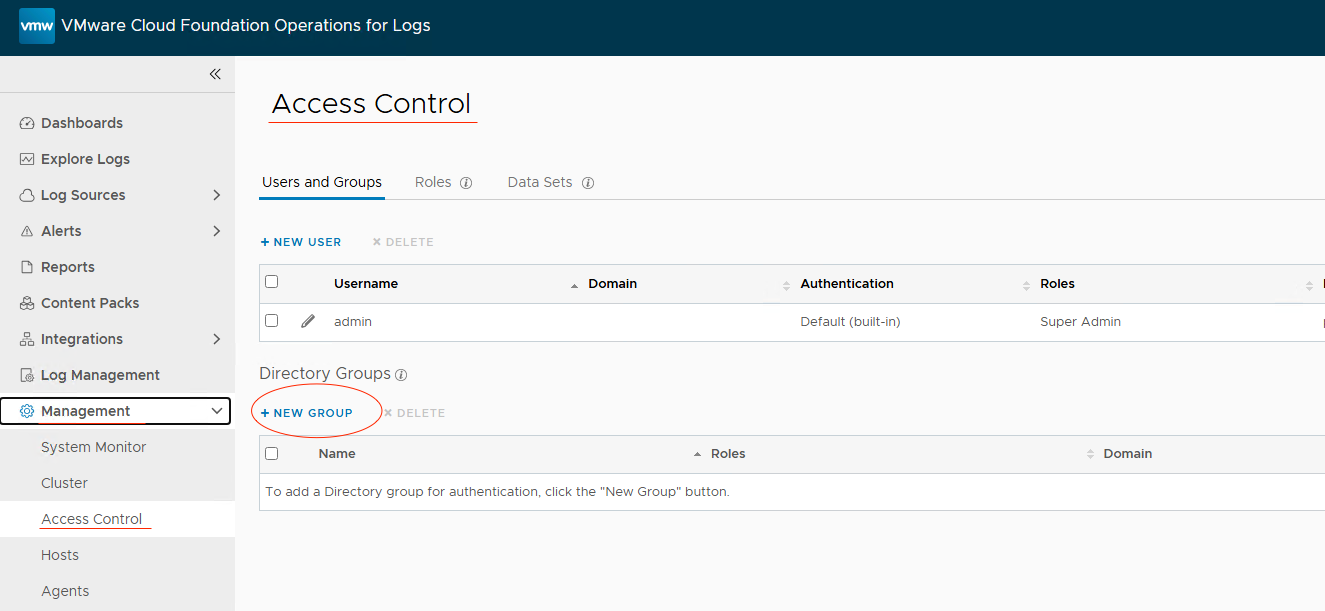
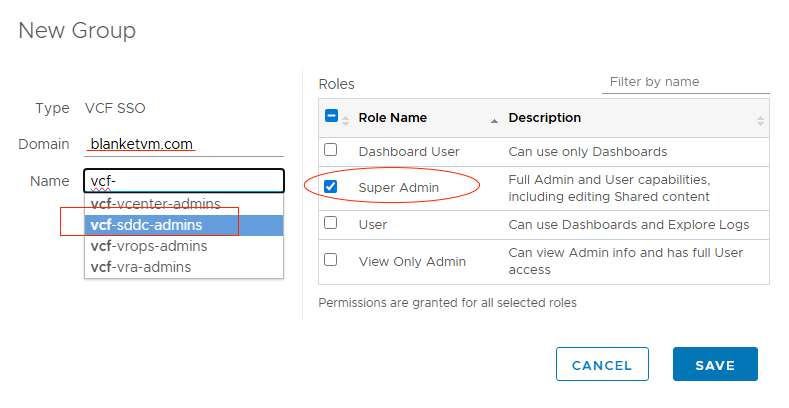
- In the New Group window, type:
Domain: blanketvm.com (type your domain).
Name: Type Active Directory group name (at least 3 characters required to start searching).
Role Name: Select the required role.
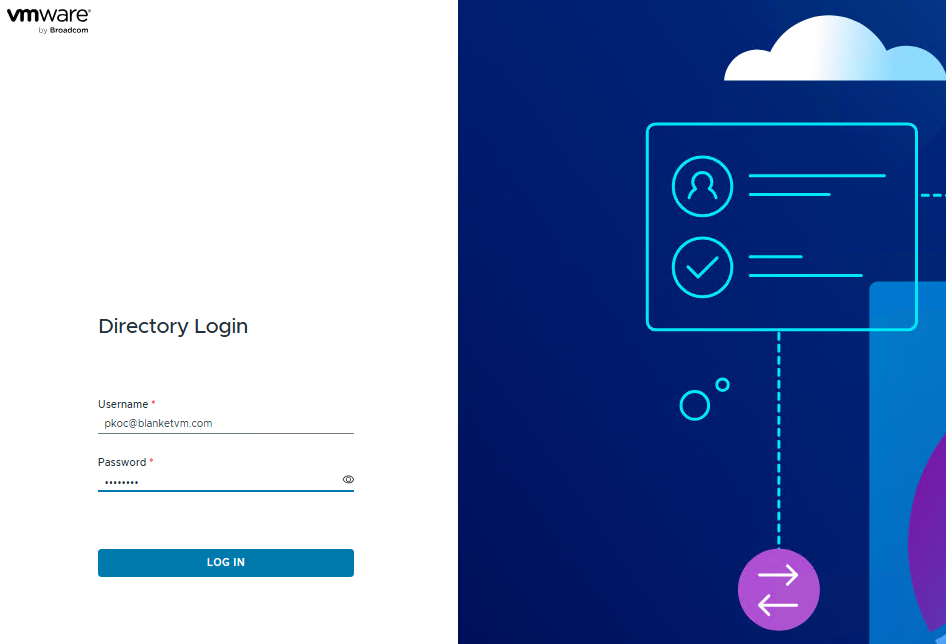
- Log out and log in again using the VCF SSO method. And success.

Conclusion:
Completing Single Sign-On (SSO) integration for VCF Operations for Logs brings you one step closer to a fully federated and secure VMware Cloud Foundation (VCF) 9 environment. In the next and final step (regarding VCF SSO), we’ll complete SSO integration by configuring VCF Automation (Aria Automation).
Stay tuned!
 BlanketVM
3 thoughts on “VCF 9 Deployment PART7: VCF Single Sign-On configuration (VCF Operations for Logs).”