
With Aria Operations, you can discover your applications based on defined criteria, such as tags. This is a great feature that can help you easily create groups in Aria Operations that correspond to your application. Below, I will show you how to do that using vSphere tags.
Why vSphere tags? vSphere tags are commonly used for many reasons, including easy search, grouping applications, marked backups, etc. It’s very likely that you already have tags ready in your environment.
NOTE: Remember that Aria Operations collects data every 5 minutes. You usually need to wait a few minutes before you see an effect in the UI. Sometimes, you may need to wait 10 or 15 minutes for results.
STEP 1: Prepare vSphere tags and categories in the vCenter Server.
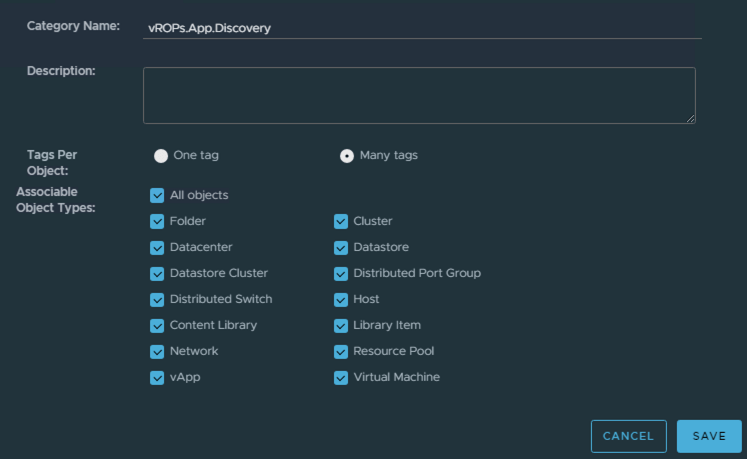
In the vCenter Server, create a tag category. It will contain all our application tags.
I set that we can assign multiple tags because some components, like Datastores, may be assigned to many applications.
Also, I set that the tag can be applied to all objects. To our application, different objects may belong, such as Datastores, Clusters, Resource Pools, or Virtual Machines, and we want to monitor them together as one application.
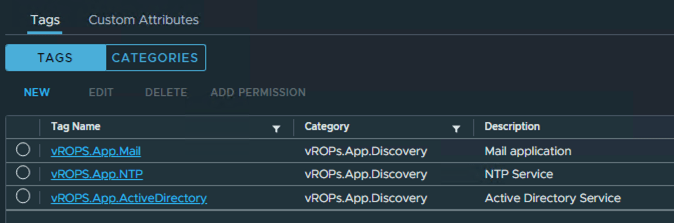
Now, we can create tags for applications. I created three and assigned them to virtual machines (you can assign them to any objects).
STEP 2: Create an application discovery rule in the Aria Operations.
Go to Configure->Applications and Services->Application Discovery: Rule based.
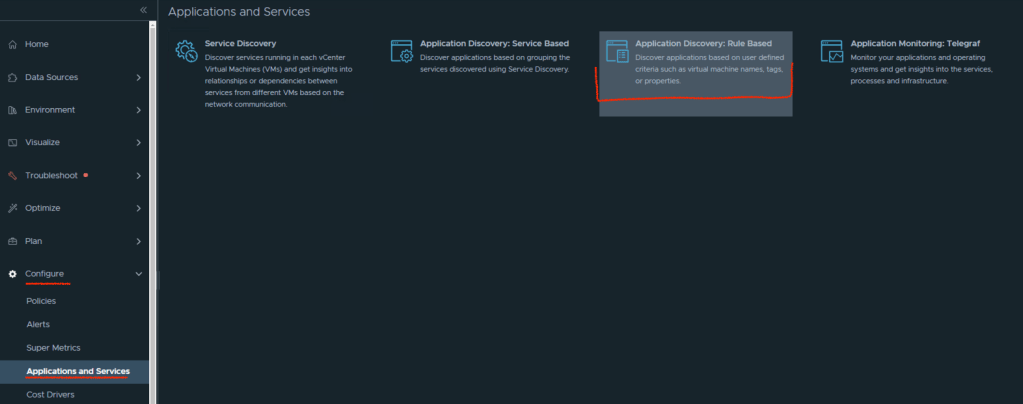
Click: Add Application Definition.
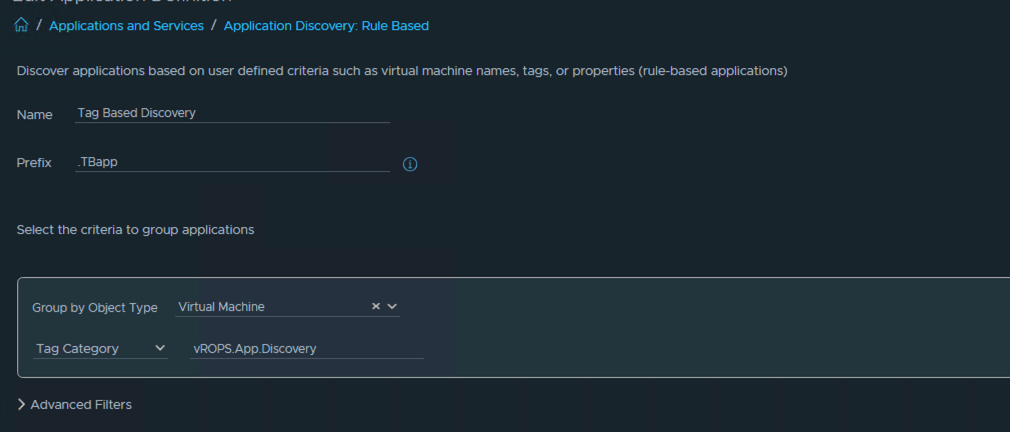
Fill wizard:
– Name: Rule Name.
– Prefix: That prefix will be added to any application name.
– Criteria: Define criteria how to create applications. As you can see below, my applications will be created based on Tag Category. So, every tag in that category will create an application.
Now, we need to assign our rule to Aria Operations objects.
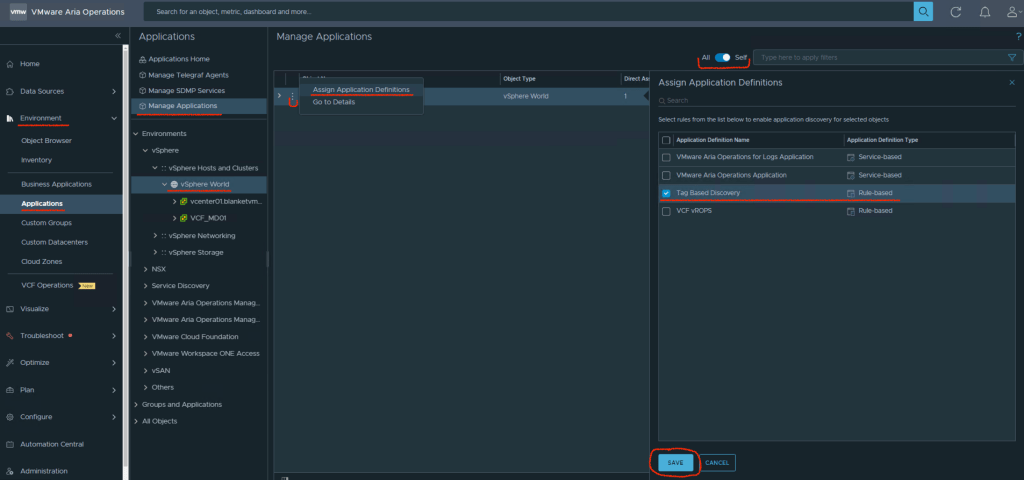
Go to: Environment->Applications->Manage Applications, then choose for which object we will assign our rule. I assign it to vSphere World because I want to get all objects below but you can assign rule for example to one vCenter, Datacenter….whatever you want.
Choose object, click on three dots and Assign Application Definition.
STEP 3: Wait or grab a coffee
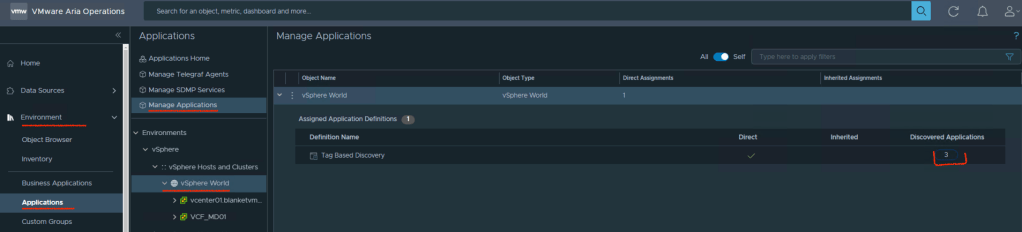
That’s the most important part :). Be patient. In my case I had to wait ~15 minutes before I saw result. It was misleading that I saw three discovered applications in the Rule but when I went to Application Management there was nothing. So, please wait :).
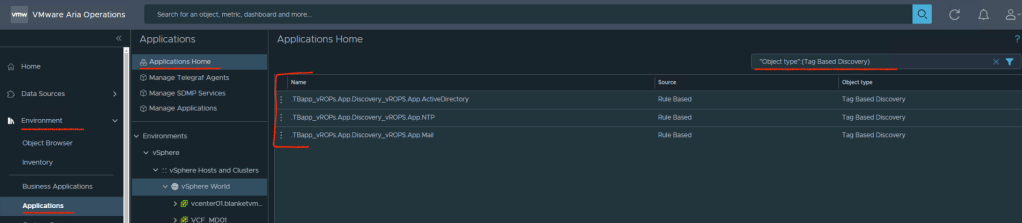
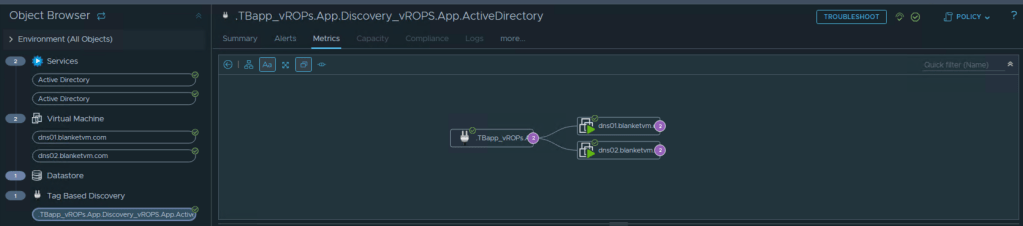
After some time, you should be able to see your applications:
Conclusion
As you can see, in that way you can easily monitor your applications. Take a look how the name of application is build and adjust rule to results that you expect. If you have already tags in your environment, you do not need to create a new one, just use them. You do not want to use vSphere tags? No problem, you can build you rules based on other properties, object names etc.
Have fun!
 BlanketVM